
Interactive plots that explore themselves: axis folding and data grouping
30 minutes · For anyone who wants to use MathJet’s interactive visualization features. Basic plotting experience helps.
This is where MathJet’s visualization story stops sounding like every other charting library’s. Data grouping lets you drag along an axis to define value ranges — called axis data groups — that organize data points by their coordinate values. Each group carries a toggle button that switches it between “expanded” and “collapsed.” Axis folding is what happens when you collapse a group: the axis condenses, the group’s value range is removed from the display, all data points within it disappear, and the remaining data spreads out to fill the freed screen space — without filtering or modifying the underlying data. Create groups over sparse regions, collapse them, and the dense regions suddenly have room to breathe. These are patented MathJet capabilities, not styling on top of standard plot widgets. Along the way you’ll also see axis selection — dragging along an axis line to pick out every data point whose coordinate falls in the dragged range — the natural first step for creating a data group. By the end of the tutorial you’ll have used these features on a real dataset and seen structure you would have missed in a fixed-scale plot.
What you’ll learn
Section titled “What you’ll learn”- How axis selection lets you drag along an axis line to select every data point whose coordinate in that dimension falls in the dragged range — a fast alternative to rectangle selection when you’re slicing by one variable, and the natural entry point for data grouping
- How to create an axis data group from an axis selection — a persistent, named value range on the axis with a marker line and a toggle button
- How collapsing an axis data group produces axis folding: the value range is removed from the axis, data points within it are hidden, and the remaining data spreads into the freed space — all without modifying the underlying data
- How axis data groups can be created on multiple axes and can form hierarchical structures when their value ranges overlap
- How collapsed groups handle null data points — with the NullPointDisplayOption property offering discontinuity or overlapped display
What you’ll need
Section titled “What you’ll need”- MathJet installed (download)
- Tutorial 1 completed, or basic familiarity with creating a plot in MathJet
- A dataset with a wide dynamic range. The provided
measurements.csvworks well. Bring your own if you have one with more dramatic scale variation — the bigger the gaps in the data, the more dramatic the folding effect. - No prior knowledge of axis folding required — the tutorial introduces it from scratch
Step 1: Load the sample data and create a scatter plot
Section titled “Step 1: Load the sample data and create a scatter plot”Download measurements.csv and save it somewhere you’ll find it. The file has four columns — sample_id, condition, measurement_value, and timestamp — with one header row and 100 data rows.
Launch MathJet and insert a worksheet (File → New → Worksheet). Drag measurements.csv onto the worksheet — MathJet populates columns A through D.
Now create a scatter plot of measurement values over time. Select columns C and D (click the column-C header, drag across D), then insert a chart: Insert → Chart → Scatter Graph → 2D(x,y) Scatter (or use the Insert Chart tool button and pick 2D(x,y) Scatter from the pane). A scatter plot appears inside the worksheet with measurement_value on the x-axis and timestamp on the y-axis — MathJet puts the first selected column on the x-axis. One hundred points spread across the chart area.

On a standard linear axis, the entire value range gets equal visual space — whether a region has twenty data points or zero. Sparse stretches waste screen area that could make dense clusters easier to read. This tutorial’s core workflow — select a range, group it, collapse it — fixes that.
Step 2: Select a value range with axis selection
Section titled “Step 2: Select a value range with axis selection”Move the mouse cursor toward the x-axis line along the bottom of the chart. As you approach the axis, a small axis selection icon appears next to the cursor, signaling that axis selection mode is active.
Click and drag along the x-axis, selecting a range of measurement values — try the range from roughly 25 to 65 (the dense middle band where most data points cluster). As you drag, a semi-transparent rectangle extends along the axis, and every data point whose x-coordinate falls within that range highlights dynamically. Markers at the two ends of the rectangle show the exact boundary values. Release the mouse button.
A context menu appears automatically after the selection. For now, click away from the menu to dismiss it — you’ll use it in the next step.

This is axis selection — a fast way to slice data by one dimension. Unlike rectangle selection (which selects by screen position), axis selection picks every point whose coordinate value in that axis dimension falls in the dragged range. The same gesture works on the y-axis: drag along the y-axis line to select all points within a time range.
Step 3: Create an axis data group
Section titled “Step 3: Create an axis data group”Repeat the axis selection from Step 2: drag along the x-axis to select a value range. This time, when the context menu appears, choose Group Data Range.
An axis data group appears on the chart. It has two visual elements:
- A marker line parallel to the x-axis, spanning the group’s value range. Click this line to toggle the selection of all data points within the range.
- A toggle button at one end of the marker line. This is the expand/collapse control — the heart of axis folding.

The group is initially in the expanded state — all data points are visible, the axis is unmodified. Click the marker line to select or deselect the data points within the range. The group is persistent: it survives chart resizing, data updates, and workspace saves.
Step 4: Collapse the group — axis folding
Section titled “Step 4: Collapse the group — axis folding”Click the toggle button on the axis data group you just created.
The axis folds. Three things happen at once:
- The group’s value range is removed from the axis. The x-axis tick labels skip directly from the value below the group’s range to the value above it — the intervening range is gone from the display.
- All data points whose x-coordinates fall within the collapsed range disappear from the chart.
- A dashed line appears at the fold point, marking where the axis was condensed.
The remaining data points — those above and below the collapsed range — spread out to fill the freed screen space. Points that were squeezed together at the extremes now have more room, making their structure easier to read.

Click the toggle button again. The group expands: the axis restores its full range, the hidden data points reappear, and the dashed line vanishes. This is purely a visual-layer operation — the data values in the worksheet haven’t changed, any formulas referencing them still compute the same results, and you can toggle back and forth freely.
How this differs from zooming and filtering. Zooming picks one scale and applies it everywhere — you see more detail in one region but lose the others entirely. Filtering removes data points from the visible set, which changes statistics and derived items. Axis folding does neither: it removes a value range from the axis while keeping the data intact. The hidden points aren’t filtered — they’re behind the fold, and one click brings them back.
Step 5: Create groups on multiple axes
Section titled “Step 5: Create groups on multiple axes”The axis data group workflow is repeatable across any active chart axis. Try creating a second group, this time on the y-axis.
Drag along the y-axis to select a time range — pick a stretch in the middle where measurements are sparse. When the context menu appears, choose Group Data Range. A marker line and toggle button appear on the y-axis.
Now collapse both groups (click both toggle buttons). The chart folds on two dimensions simultaneously: the x-axis skips the collapsed value range, the y-axis skips the collapsed time range, and only the data points outside both collapsed regions remain visible. The effect is dramatic — what was a sparse, hard-to-read cloud becomes a focused view of the data you care about.
Hierarchical groups. If you create a new axis data group whose value range overlaps an existing group on the same axis, MathJet grows the existing group to cover both ranges and automatically generates a child group for the intersecting range. The result is a hierarchy: the parent group now spans both ranges, and the child group spans only the overlap. Each has its own toggle button, so you can collapse the parent (hiding everything in its range) or just the child (hiding only the overlap). FIG. 2D in the patent drawings illustrates this with groups on both X and Y axes.

Step 6: Handling collapsed data points
Section titled “Step 6: Handling collapsed data points”When you collapse an axis data group, the hidden data points become null data points. MathJet offers two ways to handle them, controlled by the NullPointDisplayOption property in the Properties Pane (docked at the lower left).
With the scatter plot still open and an axis data group collapsed, select the graph and find NullPointDisplayOption in the Properties Pane (type its name into the pane’s filter box to find it quickly). Click its value and switch between the two options to see the effect:
- Set NaN (default) — null data points are treated as missing. On a line graph, the line is interrupted at both edges of the collapsed range, creating a visible discontinuity. This makes the fold obvious.
- Show As Usual — the null data points (and, on a line graph, their connecting segments) are displayed at their original positions, overlapping with the axis fold. This preserves the full original shape even in the collapsed state, at the cost of visual clutter at the fold boundary.
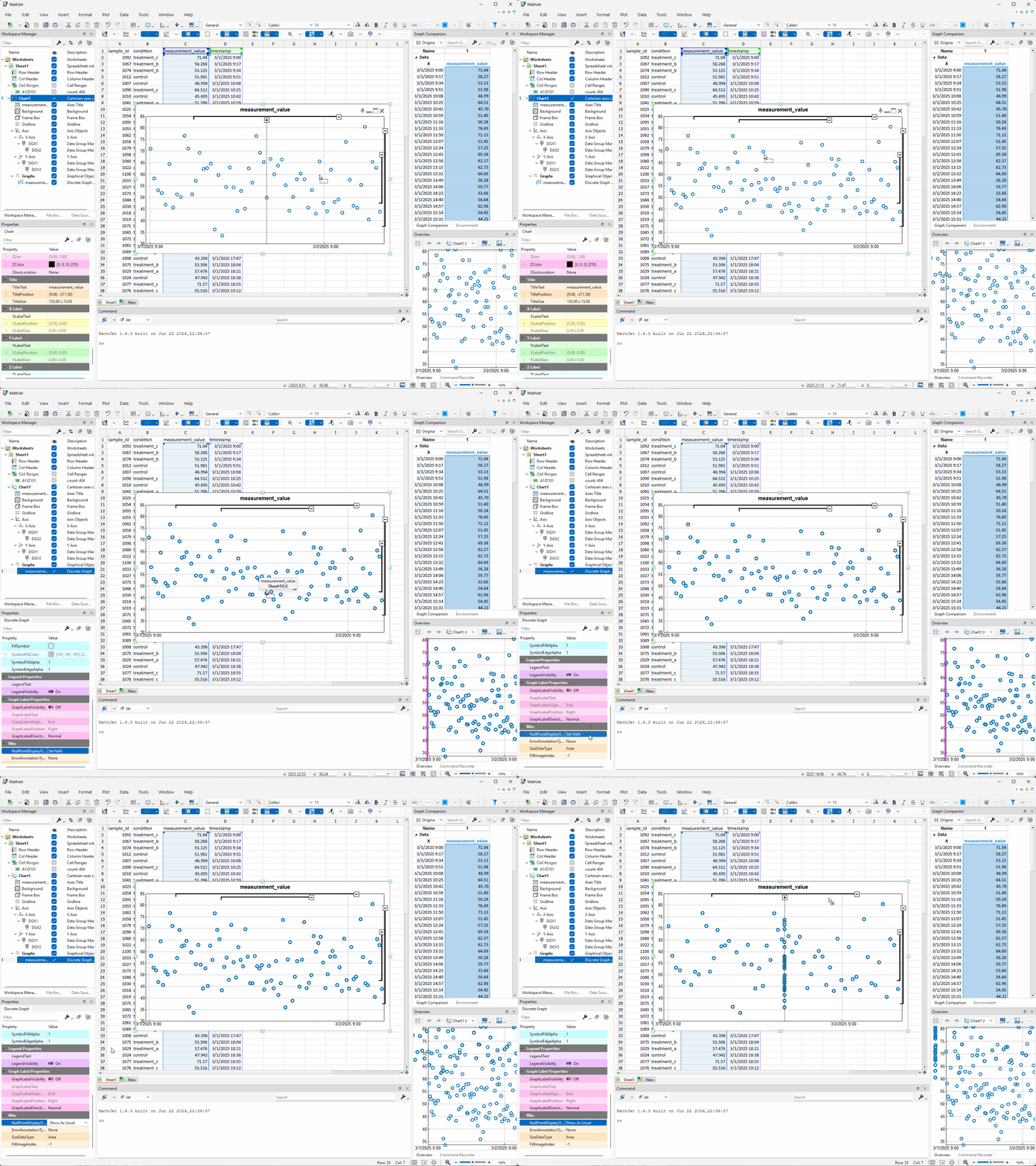
The same two options apply to surface graphs in 3D charts — axis data groups and axis folding work on all three axes of a 3D Cartesian coordinate system.
Step 7: Explore data in the Graph Companion
Section titled “Step 7: Explore data in the Graph Companion”Look at the Graph Companion pane, docked on the right of the workspace from launch (if you closed it, reopen it with Window → Tool Windows → Graph Companion). It’s a spreadsheet-style table showing the numerical values behind every graph in the chart.
Click a data point in the chart. The corresponding row in the Graph Companion table highlights — and the table auto-scrolls to bring it into view if it was off-screen. Now try the reverse: click a cell in the Graph Companion table, and the matching data point highlights on the chart. This is bidirectional selection sync — the chart and the table are two views of the same data, always in agreement.

Click the marker line of an axis data group to select all data points in that group’s range. The Graph Companion highlights every corresponding row at once — useful for scanning the numerical values of the data you’re about to fold away (or keep).
Try using the Filter text box at the top of the Graph Companion window. Type a value range — the matching rows highlight in both the table and the chart.
What you’ve learned
Section titled “What you’ve learned”- Axis selection slices data by dragging along an axis line — faster than rectangle selection when you’re working with one dimension, and the natural first step for creating axis data groups.
- Axis data groups define a named value range on an axis, marked by a line parallel to the axis and a toggle button. Clicking the marker line selects or deselects data points in the range.
- Axis folding is what happens when you collapse an axis data group: the value range is removed from the axis, data points within it are hidden, a dashed line marks the fold, and the remaining data spreads to fill the freed space. Click again to expand — a patented MathJet capability.
- Groups can be created on multiple axes and can form hierarchical structures when their value ranges overlap — parent groups contain child groups for the intersecting ranges.
- Collapsed groups produce null data points whose display is controlled by the NullPointDisplayOption property — Set NaN (treated as missing) or Show As Usual (drawn at their original positions).
- The Graph Companion window provides bidirectional selection sync between a spreadsheet-style table and the chart, with integrated filtering.
Next steps
Section titled “Next steps”The interactive features in this tutorial compose naturally with the analytics covered in Graph analytics — characteristics and dependent graphs. Graph characteristics tables update when you change a selection or apply a filter; curve fits recalculate when the visible data changes. If you want to analyze the structure you just uncovered, that’s the next tutorial.
For the full reference on every selection method (polygonal, freeform, axis, Quick Find), see the Selecting reference. For filtering operations that complement axis folding, see the Filtering reference.
Troubleshooting
Section titled “Troubleshooting”The axis selection icon doesn’t appear when I move the cursor near the axis. Make sure the chart has focus (click inside the chart area first). The axis selection icon appears when the cursor is close to the axis line itself — not the tick labels or the plot area. Move the cursor slowly toward the axis line and watch for the icon to appear.
Collapsing a group doesn’t seem to change the chart. Collapsing a group removes its value range from the axis and hides data points within it. If the group’s range contains no data points (e.g., you selected an empty region of the axis), collapsing it still condenses the axis but no points disappear — the visual effect may be subtle. For the most dramatic result, create a group over a range that contains data points, then collapse it.
I created overlapping groups and now there are extra child groups. When a new axis data group’s range overlaps an existing group, MathJet automatically creates a child group for the intersection. This is intentional — it lets you collapse the overlap independently. If you didn’t want the hierarchy, undo (Ctrl+Z) and create the new group with a non-overlapping range, or delete the unwanted child group.
Graph Companion window is empty. The Graph Companion shows data for the most recently clicked chart. Click inside the chart to make it active, and the Graph Companion will populate. If the chart is in a different tab or worksheet, switch to that tab first.