
Reading and writing real Excel files
20 minutes · For anyone working with .xlsx files. No prior MathJet® experience required.
Most tools that “support Excel files” support a subset — text and numbers in cells, maybe simple formulas, with formatting and charts and pivot tables stripped on the way in or the way out. MathJet treats .xlsx as a first-class native format. When you open a workbook with embedded charts, conditional formatting, pivot tables, and 6 sheets of cross-referenced formulas, all of it is preserved when you save back out. This tutorial walks through what that means concretely: open a non-trivial workbook, edit it inside MathJet, optionally add a Python or R formula to a cell, save back to .xlsx, and open the result in Excel® to confirm the round-trip is faithful. You’ll also see where MathJet’s native .mjw workspace format extends beyond what .xlsx can represent — and what you give up if you save back to .xlsx.
What you’ll learn
Section titled “What you’ll learn”- How MathJet opens existing
.xlsxfiles with formulas, formatting, charts, conditional formatting, and pivot tables preserved - Which Excel features MathJet supports natively (the answer is: nearly all of them) and how to find the compatibility reference for edge cases
- How to write a MathJet workspace back out as a valid
.xlsxfile that Excel can reopen - How Python and R formulas behave on the round-trip — what survives in
.xlsx, what gets converted, and what is lost - The relationship between MathJet’s native
.mjwworkspace format and.xlsx— when to use which, and how to combine them in a workflow
What you’ll need
Section titled “What you’ll need”- MathJet installed (download)
- An existing
.xlsxfile with at least one chart and a few formulas. A sample workbook based onmeasurements.csvis provided; bring your own if you have something more representative of your real work. - (Optional) Microsoft Excel installed — useful for round-trip verification, not required to complete the tutorial
- No prior MathJet experience required
Step 1: Open the sample Excel workbook
Section titled “Step 1: Open the sample Excel workbook”Download measurements_workbook.xlsx and save it somewhere you’ll find it. This is a pre-built Excel workbook based on the same measurement data used in earlier tutorials, with:
- Sheet 1 (Data) — 100 rows of measurement data with columns for sample_id, condition, measurement_value, and timestamp, plus Excel formulas for summary statistics (AVERAGE, STDEV, MIN, MAX, COUNTIF) in a summary block.
- Sheet 2 (Chart) — an embedded Excel chart (a column chart of mean measurement values grouped by condition).
- Sheet 3 (Pivot) — a pivot table summarizing measurement_value by condition, with row averages and column totals.
- Conditional formatting on Sheet 1 highlighting measurement values above 70 in one color and below 40 in another.
Open the workbook in MathJet: File → Open, navigate to measurements_workbook.xlsx, and click Open. (You can also drag the .xlsx file onto the MathJet workspace.)
MathJet opens the workbook with all three sheets as tabs. The sheet-tab names match the originals. This is not an import — it’s a direct open. The .xlsx is the live file; no conversion step happened.

Step 2: Verify formulas and formatting are preserved
Section titled “Step 2: Verify formulas and formatting are preserved”Click cell F2 on Sheet 1 (Data). The formula bar shows =AVERAGE(C2:C101) — the same formula that was authored in Excel. The computed value matches what Excel would show. Click F3 through F6 to verify the other summary formulas (STDEV, MIN, MAX, COUNTIF).
Look at the conditional formatting: cells in column C with values above 70 should have one background color, cells below 40 another. The formatting rules survived the open — MathJet evaluates them the same way Excel does.
Click the Sheet 3 (Pivot) tab. The pivot table is there — same row labels (control, treatment_a, treatment_b, treatment_c), same summary columns, same totals row. Pivot tables in MathJet behave like pivot tables in Excel: you can expand, collapse, change the value field, and refresh when the source data changes.
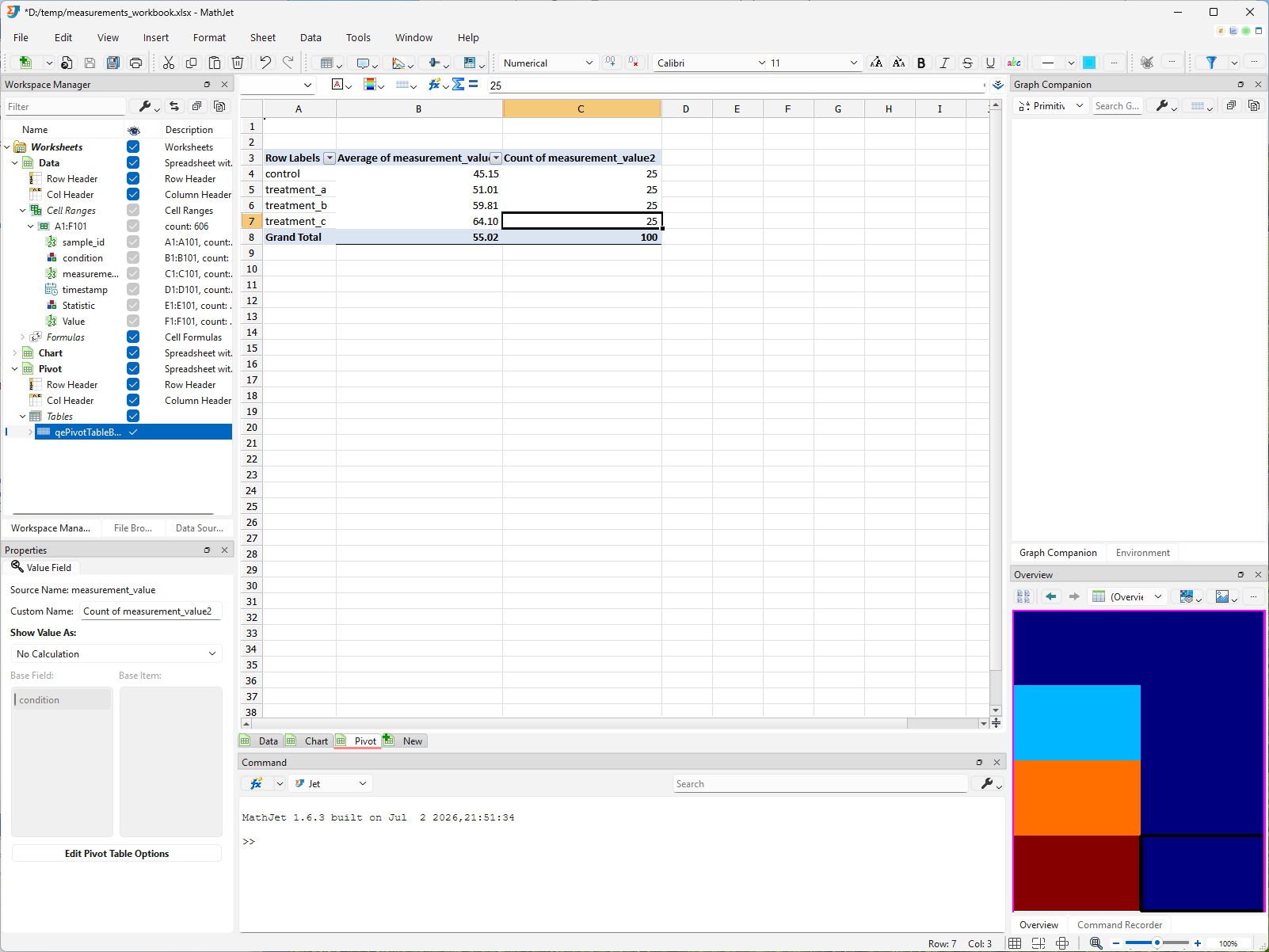
This is the “it just works” baseline. Formulas compute the same results. Conditional formatting applies the same rules. Pivot tables maintain their structure. The point isn’t that this is surprising — it’s that this is the starting condition, not the end goal.
Step 3: Explore the embedded chart
Section titled “Step 3: Explore the embedded chart”Click the Sheet 2 (Chart) tab. The Excel chart appears — a column chart showing mean measurement values grouped by condition. The chart style, colors, axis labels, and legend are preserved from the original Excel file.
Click inside the chart. MathJet treats it as a native interactive chart — all the capabilities you’ve seen in other tutorials apply. You can zoom with the mouse wheel, pan by holding Shift and dragging, select individual columns, and read values in the status bar.

Open the Graph Companion (View → Graph Companion) to see the data backing the chart in a spreadsheet-style table. Selection sync works — click a bar in the chart and the corresponding row highlights in the Graph Companion, and vice versa.
The chart is linked to the source data on Sheet 1. Changes you make to the measurement values will flow through the summary formulas and update the chart. You’ll test that in the next step.
Step 4: Edit data and see formulas and chart update
Section titled “Step 4: Edit data and see formulas and chart update”Switch back to Sheet 1 (Data). Click cell C2 (the first measurement value) and change it to 200 — well outside the normal range. Press Enter.
Three things happen simultaneously:
- The summary formulas update. F2 (AVERAGE) shifts upward; F5 (MAX) jumps to 200; F3 (STDEV) increases.
- The conditional formatting responds. Cell C2 now has the “above 70” background color.
- The chart on Sheet 2 updates. Switch to the Chart tab — the column for the condition that sample belongs to has grown taller, reflecting the new average.
This is the same live-linking behavior you saw in earlier tutorials, but now it’s running on Excel formulas in an Excel file format. The worksheet-chart-formula triangle works the same way regardless of whether the file is .mjw or .xlsx.
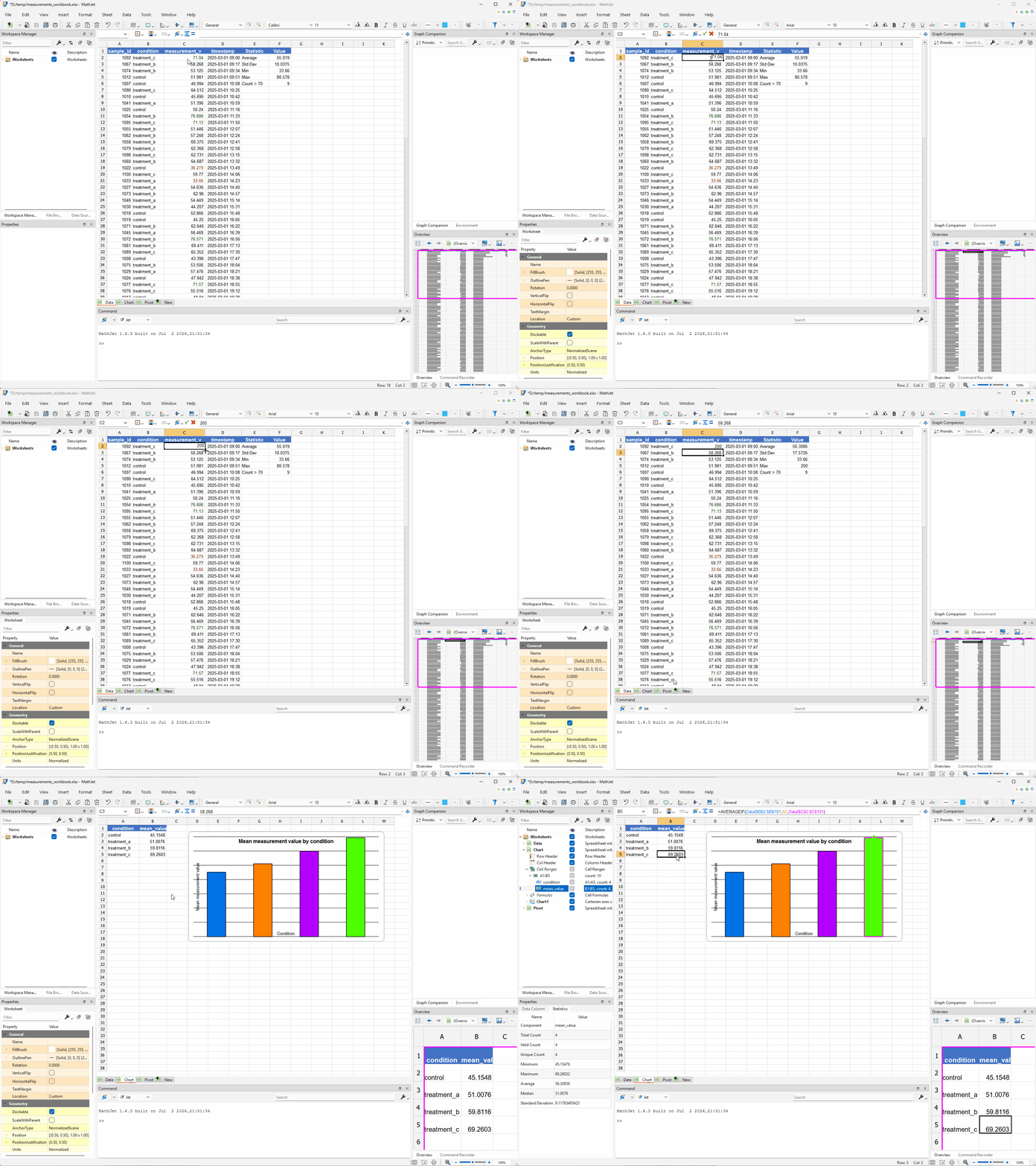
Press Ctrl+Z to undo the edit and restore the original value.
Step 5: Add a Python or R formula to a cell
Section titled “Step 5: Add a Python or R formula to a cell”Here’s where MathJet extends what .xlsx can do. Click an empty cell — say H1 on Sheet 1 — and type a label: Py Median. In H2, type:
=py::numpy.median(C2:C101)Press Enter. MathJet evaluates the formula using the embedded Python interpreter and NumPy, and H2 shows the median of the measurement values. The formula bar shows =py::numpy.median(C2:C101) — a Python function call wrapped in MathJet’s polyglot formula syntax.
Try an R formula in I1/I2: type R IQR as the label, and in I2 type:
=r::IQR(C2:C101)MathJet evaluates this using the embedded R interpreter. I2 shows the interquartile range.

These formulas are live — edit a measurement value in column C and both H2 and I2 recompute, just like the Excel formulas in column F.
What happens on the round-trip? When you save this workbook back to
.xlsxin the next step, MathJet needs to handle these formulas. Excel doesn’t understand=py::or=r::. MathJet caches the computed values so Excel shows the correct numbers, but the formulas themselves are stored in a way that Excel treats as unknown — it will display the cached values but can’t recalculate them. Reopening the file in MathJet restores the live formulas. Step 7 covers this in more detail.
Step 6: Save back to .xlsx
Section titled “Step 6: Save back to .xlsx”Save the workbook: File → Save (or Ctrl+S). Because the file was opened as .xlsx, MathJet saves it back in .xlsx format — no format-conversion dialog, no “Save As” required.
If you added the Python/R formulas in Step 5, MathJet shows a brief notification reminding you that polyglot formulas will be cached as values in the .xlsx file. Acknowledge it and the save completes.
The resulting .xlsx is a valid Excel file. All original content — formulas, charts, conditional formatting, pivot tables, sheet structure — is preserved. The Python/R formulas are stored with their cached values.
Step 7: (Optional) Verify the round-trip in Excel
Section titled “Step 7: (Optional) Verify the round-trip in Excel”If you have Microsoft Excel® installed, open the saved .xlsx file in Excel now. Check:
- Sheet 1 formulas. The AVERAGE, STDEV, MIN, MAX, and COUNTIF formulas in column F are intact and compute the same values.
- Conditional formatting. The color rules on column C are still active.
- Sheet 2 chart. The column chart displays correctly with the same style and data.
- Sheet 3 pivot table. The pivot table is functional — you can expand, collapse, and refresh it.
- Python/R formulas (if added). Cells H2 and I2 show the correct cached values. The formula bar shows them as cached or unknown formulas — Excel can display the values but cannot recalculate them. This is the expected behavior for polyglot formulas in a
.xlsxround-trip.
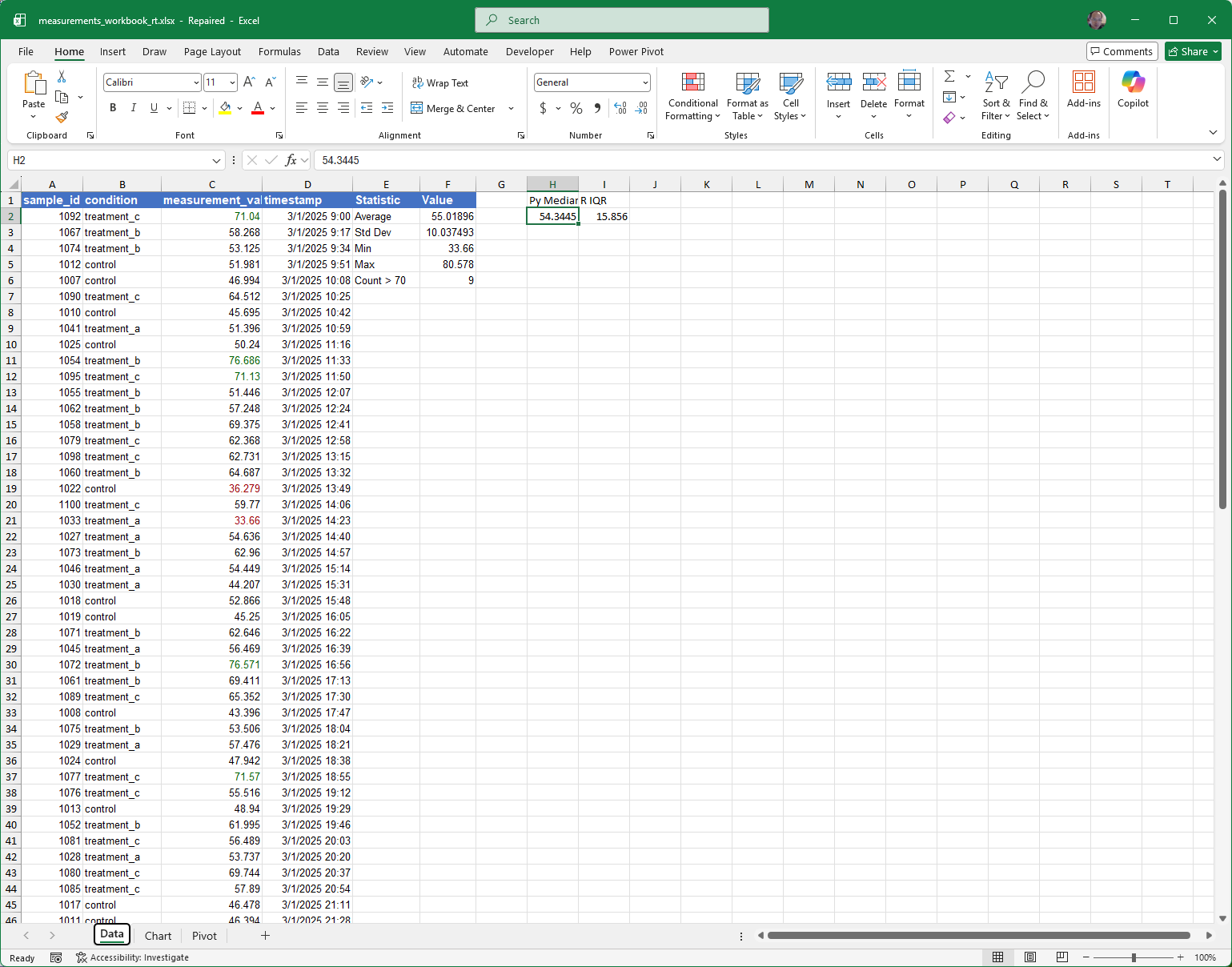
Close the file in Excel and reopen it in MathJet. The Python/R formulas are live again — edit a cell in column C and H2/I2 recompute.
Step 8: When to use .mjw vs .xlsx
Section titled “Step 8: When to use .mjw vs .xlsx”MathJet’s native workspace format is .mjw. It can represent everything .xlsx can, plus:
- Polyglot formulas that stay live (not cached).
- Multiple charts, chart sheets, and data surfaces in a single workspace, with the full interactive visualization engine (axis folding, data grouping, graphical editing, graph characteristics, dependent graphs).
- Script segments embedded in the workspace alongside the spreadsheet data.
- Variable state from the embedded interpreters (Jet, Python, R), including data frames and objects that don’t fit in a cell grid.
The .xlsx format is the right choice when you need to share with someone who uses Excel — which is most of the time. MathJet’s round-trip fidelity means you can work in MathJet and save to .xlsx without losing what Excel cares about.
The .mjw format is the right choice when you need the full MathJet feature set — live polyglot formulas, interactive visualization, multi-language scripts, and the unified workspace model. Save to .mjw when the workspace is your working document, and export to .xlsx when you need to hand off a spreadsheet.
You can keep both: save the workspace as .mjw for your own use, and use File → Save As to export a .xlsx copy whenever a collaborator needs one.
What you’ve learned
Section titled “What you’ve learned”- MathJet opens
.xlsxfiles directly — formulas, charts, conditional formatting, pivot tables, and sheet structure are preserved, not imported or converted. - Editing data in the worksheet updates Excel formulas, conditional formatting, and charts live — the same live-linking behavior that works in
.mjwworkspaces. - Python and R formulas can be added to any cell using MathJet’s polyglot formula syntax (
=py::...,=r::...). They compute live in MathJet; on.xlsxsave, their values are cached so Excel can display the results. - Save writes back to
.xlsxby default when the file was opened as.xlsx. The round-trip preserves the original Excel content; polyglot formulas are cached as values. - The
.mjwformat extends.xlsxwith live polyglot formulas, interactive visualization features, and multi-language scripting. Use.xlsxfor sharing with Excel users; use.mjwfor full MathJet capabilities.
Next steps
Section titled “Next steps”If you want to explore MathJet’s interactive chart features on data you loaded from Excel, see Interactive plots — axis folding and data grouping and Graph analytics — characteristics and dependent graphs. Both tutorials work on the same measurement data used in this workbook.
For pulling data from a SQL database instead of a file, see Working with databases: connect, query, and import — the sibling tutorial for external data sources.
For the full reference on .xlsx compatibility (formula coverage, chart types, conditional formatting rules), see the Excel files how-to once it’s published.
Troubleshooting
Section titled “Troubleshooting”MathJet doesn’t open my .xlsx file. Make sure the file isn’t currently open in another application (Excel locks .xlsx files for exclusive access on some platforms). Close it in Excel first, then open in MathJet.
Some conditional formatting rules look different. MathJet supports most Excel conditional formatting rules, but a few edge cases (custom icon sets, complex multi-condition rules) may render differently. The data and formulas are unaffected — only the visual presentation of the rule may differ.
My Python/R formulas show errors after reopening in MathJet. Polyglot formulas require the corresponding interpreter to be available. If MathJet can’t find a Python installation (for =py:: formulas) or an R installation (for =r:: formulas), the formulas will show errors. Make sure the interpreter is installed and accessible. Python ships with MathJet; R requires a separate installation (see Tutorial 5 for R setup details).
The pivot table lost its formatting after the round-trip. Pivot table data and structure are preserved, but some Excel-specific pivot table styles may not round-trip perfectly. The pivot table’s content — row labels, values, totals — remains correct.