
Graph analytics: characteristics and dependent graphs
30 minutes · For anyone who plots data and wants to read structure off the chart without leaving it. Tutorial 1 is enough preparation.
Most charting tools treat the plot as the end of the analysis pipeline — you compute statistics elsewhere, then plot. MathJet treats the chart as another live surface for analysis. Graph characteristics runs a customizable battery of analyses on selected data points or whole graphs and shows the results in a summary table right inside the chart, updating automatically when the underlying data changes. Dependent graphs derive new graphs from one or more sources using either predefined functions or custom formulas, and stay live as the sources change. This tutorial walks you through both, plus the Quick Statistics floating window and Curve fitting trendlines that round out MathJet’s chart-side analytics.
What you’ll learn
Section titled “What you’ll learn”- How to use Quick Statistics — the floating window and status-bar updates that summarize any current chart or worksheet selection
- How to add and customize a Graph Characteristics table inside a chart, and how it reacts to data edits and selection changes
- How to fit a trendline with the Curve Fitting workflow (linear, polynomial, exponential, and other models), and how the trendline tracks source-data changes
- How to derive dependent graphs from one or more source graphs — via the predefined function menu, via drag-and-drop merge, and via custom formula — and how to keep them live as the sources evolve
- How these chart-side analyses compose with MathJet’s per-component dynamic links so a single edit can ripple through cells, source graphs, characteristics tables, and dependent graphs in one pass
What you’ll need
Section titled “What you’ll need”- MathJet installed (download)
- Tutorial 1 completed — you should be comfortable with worksheets, the Environment Pane, the Overview Pane, and basic chart navigation
- (Optional) Interactive plots that explore themselves — the axis-folding and data-grouping features pair naturally with the analytics in this tutorial, but each tutorial stands on its own
Step 1: Load the sample data and create a line chart
Section titled “Step 1: Load the sample data and create a line chart”Download measurements.csv if you haven’t already. It has four columns — sample_id, condition, measurement_value, and timestamp — with 100 data rows across four experimental conditions.
Launch MathJet and insert a worksheet (File → New → Worksheet). Drag measurements.csv onto the worksheet. Now create a line chart, without selecting any cells first: click the arrow at the right edge of the chart button on the Insert toolbar (the button shows a chart type, such as 2D Line) to open the Insert Graph tool pane, then click 2D(x,y) Straight Line (hover over an icon to see its name). The Create New Graph dialog opens. Inside the dialog, pick column D (Sheet1!D:D, timestamp) for the X component and column C (Sheet1!C:C, measurement_value) for the Y component, then press OK. A line graph appears with timestamp on the x-axis and measurement values connected in chronological order.
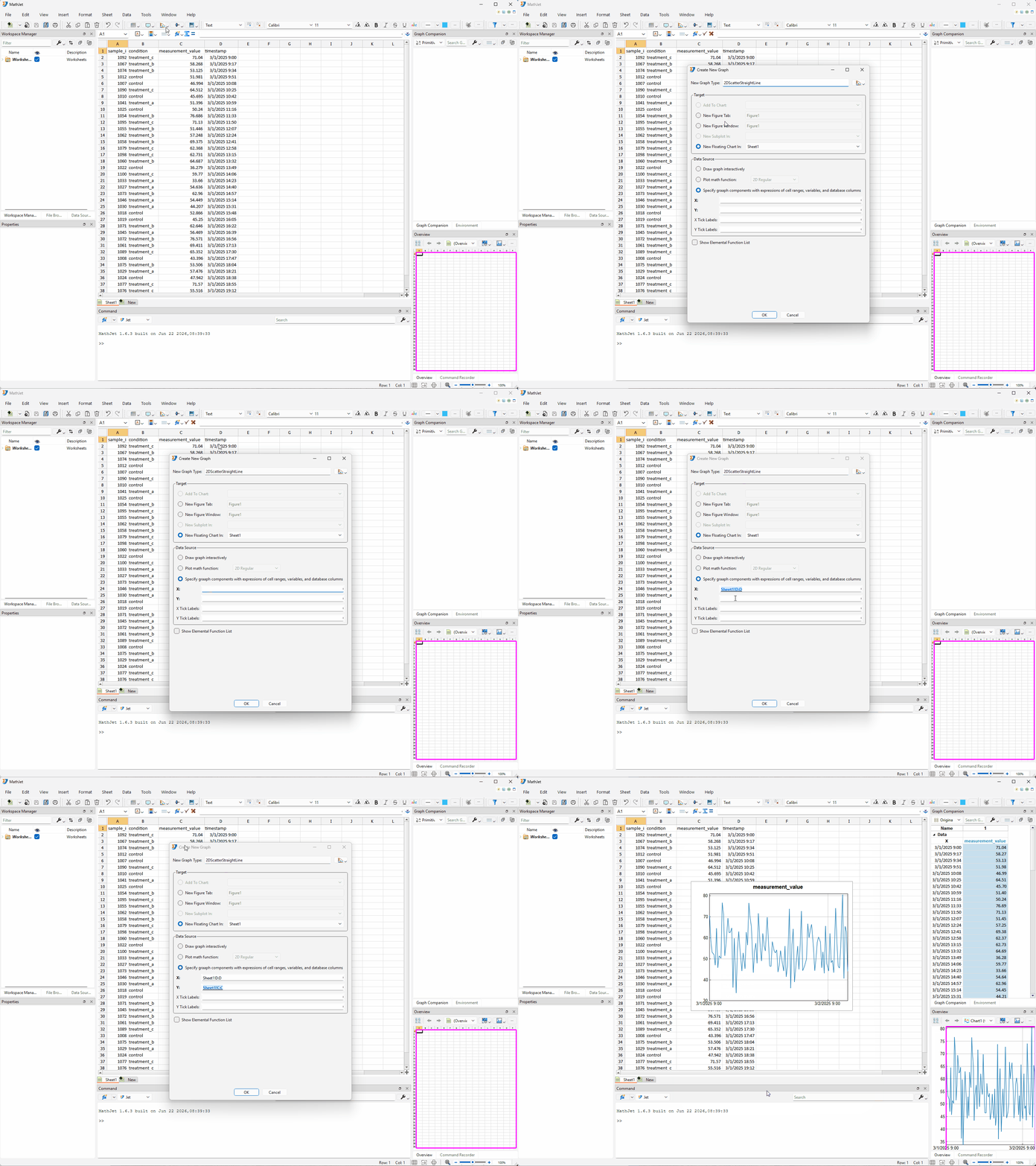
The line graph looks noisy — unsurprising, since the four conditions have different value distributions and they’re plotted in time order, not grouped. That noise is exactly what graph analytics will help you characterize without leaving the chart.
Step 2: Read live statistics with Quick Statistics
Section titled “Step 2: Read live statistics with Quick Statistics”Click inside the chart to give it focus. Look at the status bar at the bottom of the MathJet window. It shows a live summary of the current chart: the number of graphs, the number of data points, and their total and average values. These numbers update instantly whenever you change the selection or edit data.
For a more detailed view, open the Quick Statistics window: Window → Tool Windows → Quick Statistics. A semi-transparent floating window appears over the chart, showing the number of graphs and data points and their maximum, minimum, average and standard deviation.

Now make a selection. Click and drag to select a subset of data points on the chart (or use axis selection — see Interactive plots — to drag along the x-axis for a time range). The Quick Statistics window updates instantly to show statistics for only the selected points. The numbers in the status bar update at the same time.
Clear the selection by clicking any blank space in the chart. The Quick Statistics window switches to a lighter gray shade, showing statistics for the entire chart — broader context without requiring a selection.
Quick Statistics works on worksheets too. Click a range of cells in the worksheet and the status bar and floating window show statistics for the selected cell values.
Step 3: Add a Graph Characteristics table
Section titled “Step 3: Add a Graph Characteristics table”The Quick Statistics window is great for a quick read, but it disappears when you close it. Graph Characteristics is the persistent version: a summary table that lives inside the chart, runs a customizable set of analyses, and updates automatically when the data changes.
Select the line graph (click on the line or its legend entry). Then choose an analysis function from Plot → Graph Characteristics (the Plot menu appears in the menu bar once the chart is selected) — start with something simple like mean. A table appears inside the chart with one row for the selected graph and one column showing its mean value.
Add more characteristics: go back to Plot → Graph Characteristics and pick std (standard deviation), then min, then max. Each function adds a new column to the table. The table now shows four computed values for your line graph — all derived from the same data points visible in the chart.

Click any row in the Graph Characteristics table — the corresponding graph (or specific data points, if the function was applied to a selection) highlights on the chart. The table and the chart stay synchronized.
Now edit a value in the worksheet. Change one of the measurement values in column C to something dramatically different — say, 200. The chart updates (the line spikes), and the Graph Characteristics table recomputes all four columns automatically. No re-run, no refresh — the table is live.
Press Ctrl+Z to undo the edit and restore the original value.
Step 4: Customize the Graph Characteristics table
Section titled “Step 4: Customize the Graph Characteristics table”The default set of functions is a starting point. Open the customization dialog: Plot → Graph Characteristics → Customize, or double-click any column header in the table.
The dialog lets you:
- Add functions — pick from a list of available analyses (listed by function name: mean, median, std, var, rms, pk2pk, and more).
- Remove functions — delete columns you don’t need.
- Reorder — drag columns to rearrange them in the table.
- Change data ranges — specify which data points each function should operate on. By default, functions run on all data points in the graph; you can restrict them to a selection or a named subset.
Add median and rms (root mean square) from the dialog, then click OK. The table updates with the new columns.
Toggle the table’s visibility at any time via View → Chart Components → Graph Characteristics or the corresponding tool button. Hiding the table doesn’t delete the configuration — show it again and the same columns reappear with current values.
Step 5: Fit a trendline with Curve Fitting
Section titled “Step 5: Fit a trendline with Curve Fitting”Select the line graph (click on the line). Choose a model from Plot → Curve Fitting — start with Linear. A straight trendline appears on the chart, fitted to the data by least squares. The line extends across the full x-range of the graph.

The trendline displays its equation and R² value on the chart. For a noisy mixed-condition dataset like this one, the R² will be low — the linear model doesn’t explain much of the variance. That’s informative in itself.
Try a different model. Select the graph again and choose Plot → Curve Fitting → Polynomial. Pick an order (try 3 for a cubic). The polynomial trendline appears alongside (or replacing) the linear one, following the data’s shape more closely.
The trendline is a live object:
- Edit source data — change a measurement value in column C. The trendline recalculates and redraws to fit the updated data. The equation and R² values update too.
- Adjust trendline properties — right-click the trendline or use its property dialog to change the number of forward/backward forecast periods, toggle the equation and R² display, or adjust the line style.
- Compare with the Graph Companion — look at the Graph Companion pane, docked on the right (if you closed it, Window → Tool Windows → Graph Companion). It shows a point-by-point comparison between the original data values and the values predicted by the fitted model, which is useful for spotting where the model diverges from the data.
Available models include linear, polynomial (configurable order), exponential, logarithmic, power, and smoothing (a moving average).
Step 6: Create dependent graphs from predefined functions
Section titled “Step 6: Create dependent graphs from predefined functions”A dependent graph derives a new graph from one or more source graphs using a formula, and stays live as the source data changes. Where curve fitting adds a model line, dependent graphs let you create entirely new derived series — a frequency spectrum, a running difference, an arithmetic combination.
From the menu. Select the line graph, then pick a function from Plot → Dependent Graphs. Try Cumulative Integral (or another single-source function from the list). A new line appears in the chart showing the running cumulative integral of the measurement values. It has its own legend entry and behaves like any other graph — you can change its color, style, and visibility independently.

Via drag-and-drop. If your chart has two or more graphs, drag one graph onto another. A pop-up menu appears; its Merge Graphs submenu lists the arithmetic operations, among them Add, Multiply, Subtract Destination, Subtracted By Destination, Divide Destination and Divided By Destination. Leave Keep original graphs checked (it is by default) and pick Subtract Destination. A new dependent graph appears, showing the graph you dropped onto minus the graph you dragged, at each x-coordinate. The originals remain unchanged in the chart.
Custom formula. For derived graphs whose formula isn’t a predefined function, choose Plot → Dependent Graphs → Custom. A dialog opens where you pick the base graphs and type a formula that determines the dependent graph’s values. The formula can reference x, y, and other graph variables — for example, y * 2 + 10 to create a scaled and shifted version of the source.
Step 7: Watch everything update from a single edit
Section titled “Step 7: Watch everything update from a single edit”This is where the pieces come together. Your chart now has several layers: the original line graph, a Graph Characteristics table, a trendline, and one or more dependent graphs. All of them are linked to the same source data in the worksheet.
Click a cell in column C (measurement_value) — pick one in the middle of the range. Change the value to something dramatically different: if the original is around 55, type 150. Press Enter.
Watch the chart: the original line graph spikes at that point. The trendline repositions to account for the new outlier. The dependent graph (cumulative integral or difference) shifts accordingly. The Graph Characteristics table recomputes every column — mean, standard deviation, min, max — all reflecting the edited value. The Quick Statistics window (if open) updates too.
All of this happens in a single pass, with no explicit refresh or re-run. This is MathJet’s per-component dynamic linking at work: one cell edit ripples through the source graph, the characteristics table, the fitted trendline, and the dependent graphs in one update cycle.
Press Ctrl+Z to undo the edit.

What you’ve learned
Section titled “What you’ve learned”- Quick Statistics — the status bar and floating window provide live statistical summaries of the current selection (or the entire chart when nothing is selected), updating instantly on selection change or data edit.
- Graph Characteristics — a persistent, customizable summary table embedded inside the chart. Add, remove, reorder, and configure functions; the table recomputes automatically when the source data changes.
- Curve Fitting — adds trendlines (linear, polynomial, exponential, logarithmic, power, smoothing) to a selected graph. The trendline equation, R² value, and the fitted line itself update live as source data changes.
- Dependent graphs — derived series created from one or more source graphs via predefined functions, drag-and-drop merge, or custom formulas. They stay live as the sources evolve.
- Live cascading updates — a single edit to source data ripples through all derived items (graph characteristics, trendlines, dependent graphs) in one pass, with no refresh step.
Next steps
Section titled “Next steps”The analytics in this tutorial compose naturally with the interactive visualization features in Interactive plots — axis folding and data grouping. Axis folding compresses gaps so dense clusters are easier to analyze; data grouping partitions the chart by category, and Graph Characteristics recomputes for each group.
For editing data directly on the chart — drawing replacement segments, nudging points, smoothing, and erasing outliers — see the Editing reference. Graphical editing feeds back into all the analytics you’ve set up: nudge a point, and the characteristics table, trendlines, and dependent graphs update.
For the full reference on analysis features, see Analysis.
Troubleshooting
Section titled “Troubleshooting”The Graph Characteristics table is not visible. Toggle visibility via View → Chart Components → Graph Characteristics or the corresponding toolbar button. If no functions have been added yet, the table won’t appear — add at least one function from Plot → Graph Characteristics first.
Curve Fitting menu items are grayed out. Make sure a graph (not just the chart background) is selected. Click directly on a data point or the line/bar of a specific graph, then try the Curve Fitting menu again.
Dependent graph doesn’t update when I edit source data. The dependent graph is linked to the source graph, not directly to the worksheet cells. If you edit a cell that the source graph is linked to, the update should cascade. If the source graph itself isn’t linked to the cells (e.g., you pasted values into the chart rather than linking to cells), the cascade won’t reach the dependent graph. Check the source graph’s links via Plot → Links to Data Sources.
Quick Statistics window shows values in light gray. Light-gray values indicate statistics for the entire chart (no selection active). Make a selection (click data points, or use axis/regional selection) to see statistics for the selected subset in full-contrast text.